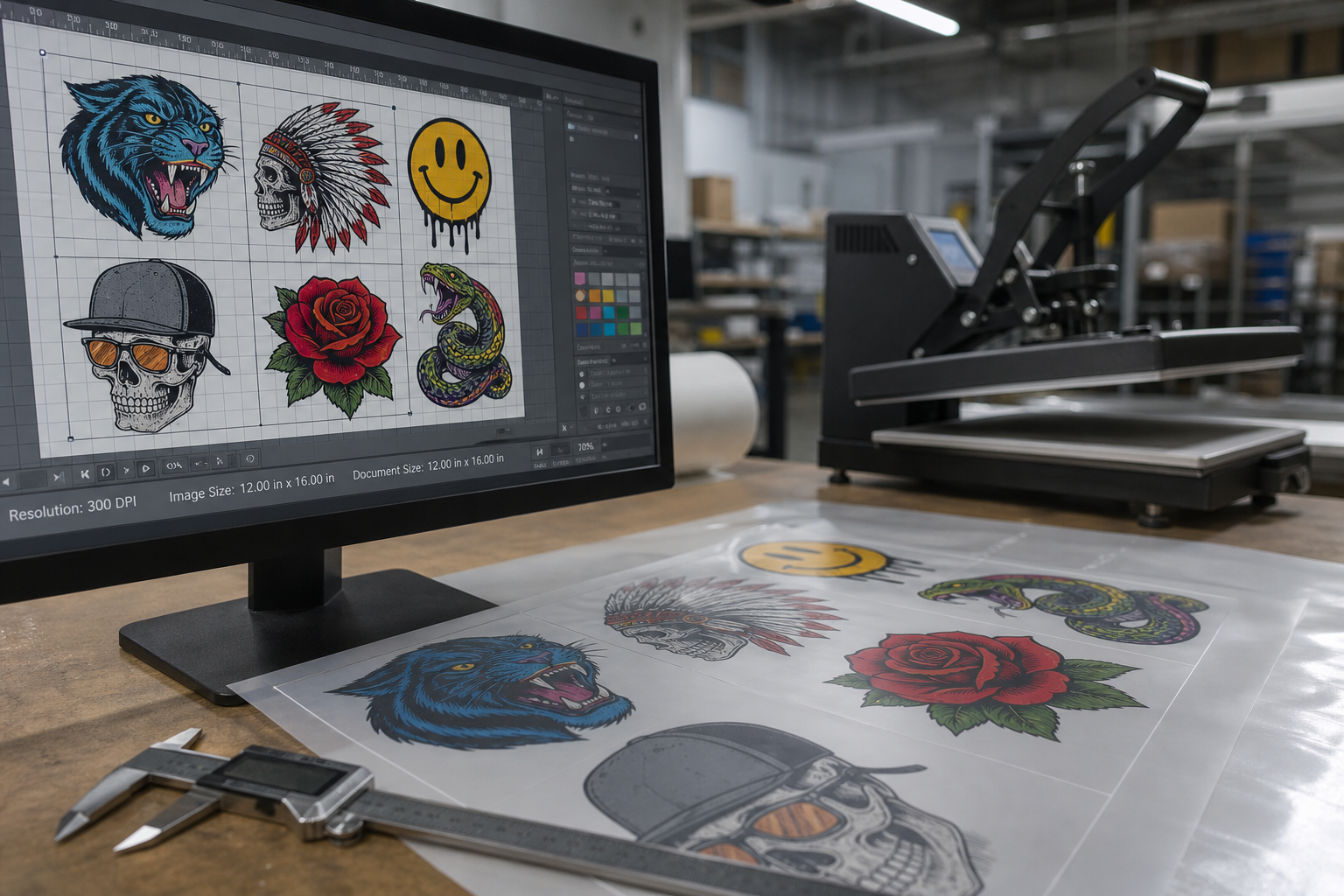
Most DTF reprints start before anyone opens the RIP. A customer uploads art that looks fine on a phone, the order gets paid, and prepress spends twenty minutes cleaning a file that should have been rejected at checkout.
This guide lists the customer upload mistakes Formulated Prints still sees on live gang sheet orders, and the intake rules that stop them. If you sell transfers on Shopify, treat file rules as part of production, not a polite suggestion in your FAQ.
What counts as a customer upload mistake
A customer upload mistake is any file that cannot print at the size they ordered without redrawing, upscaling guesses, or background cleanup. Screenshots, Instagram exports, and photos of printed shirts all fall in that bucket.
It is not rude to reject those files. It is cheaper than reprinting a sheet because white edges show on black tees, or because a 72 DPI logo turns soft at 10 inches wide.
Mistake 1: DPI looks sharp on screen and fails at print size
Customers judge sharpness on a zoomed phone screen. Shops judge sharpness at final width in inches. A logo that fills the phone can still be under 300 DPI at 8 inches wide.
Ask for transparent PNG at the print size they paid for. If they only have a small source file, tell them to shrink the print size instead of stretching pixels. Fake AI upscaling without a human check still creates soft edges on text.
DPI settings that keep DTF transfers sharp
Mistake 2: JPG or photo backgrounds where film needs clear space
DTF needs a clean silhouette. A JPG with a white box around the logo prints that white box. A photo of a logo on a table prints the table unless someone masks it by hand.
Require transparent PNG for soft goods art. If a customer only has JPG, either charge for cleanup or send a short rejection note with an example of a correct transparent file. Do not silently fix free work every time or the same accounts will keep uploading the same problem.
Mistake 3: size in pixels instead of size in inches
Customers say “full front” and upload a 2000 pixel square with no inch target. Your gang sheet builder and RIP still need a physical width. Left-chest logos often sit near 3 to 4 inches. Full fronts vary by garment, but the order must name an inch size.
Put size selection on the product page. Tie the uploaded file to that size in the line item. When size lives in a chat thread and art lives in Drive, reprints follow.
How Shopify customer uploads should attach to gang sheets
Mistake 4: screenshots, compressed chat exports, and live-photo stills
WhatsApp and Instagram compress images. A screenshot of a Canva export is not a production file. Live Photos and social downloads also strip useful resolution.
Write the rule in plain language on the upload form: original PNG or PDF from design software, not a screenshot. Show one accepted file and one rejected file. Pictures teach faster than a paragraph of policy.
Mistake 5: mixed color expectations and off-brand CMYK surprises
Customers design in bright RGB on a phone, then complain the pressed shirt looks duller. DTF can print rich color, but it will not match an uncalibrated phone screen.
Set expectations before production: soft goods color can shift, brand reds need a sample press when they matter, and rush jobs leave less room for a second proof. Offer a paid sample transfer when a corporate color must land close.
When to sample DTF transfers before a bulk run
Intake checklist that cuts reprints
Use this checklist before nesting:
1. File type is transparent PNG or an agreed vector or PDF workflow.
2. Ordered width in inches is on the line item.
3. Effective DPI at that width meets your shop minimum.
4. No random background, no screenshot compression blocks, no tiny text that will fill in.
5. Customer email or Shopify account matches the order so rejection notes do not bounce.
6. If cleanup is needed, it is quoted before the sheet is nested.
Shops that enforce this list spend less time in Photoshop and more time on the press. The goal is not perfect customers. The goal is fewer unpaid rescue jobs.
Where software helps without replacing prepress judgment
An auto gang sheet builder cannot invent missing pixels. It can keep the upload, the size, and the nest tied to the Shopify order so staff are not hunting folders. That is the useful part of automation for customer uploads.
See how Formulated Prints handles custom DTF gang sheet uploads
If you want that order-linked flow on your own store, look at Pro Transfers Builder. Use it to capture cleaner uploads and export print-ready sheets. Keep a human in the loop for brand-critical art and first-time accounts.
Pro Transfers Builder on the Shopify App Store
What to tell customers when you reject a file
Keep the note short. Name the problem, name the fix, and give one size example. Example: “This file is too small for a 10 inch print. Upload a transparent PNG that stays near 300 DPI at 10 inches, or change the size to 4 inches.”
Customers accept clear rules faster than vague “high quality file” language. Specifics protect your turnaround and their shirt.